ShipRescue manual
Version 1.1 · 9 October 2026 · Questions: support@softarchium.com
1. What ShipRescue does, and the one thing it writes
A shopper fills a cart, types their address, and checkout says “Shipping not available.” There is no button for them to press, so they leave, and nothing in your analytics tells you why. The cause is almost always in your shipping settings: a country missing from a zone, a gap between two price bands, a weight limit nobody remembers setting.
ShipRescue reads your shipping configuration, simulates Shopify’s own rate resolution against it, and names the exact cause in plain language, with the fix and where to apply it.
It never changes your shipping settings, your products or your orders. Every fix is one you apply yourself in your own admin. The single thing ShipRescue can write is a draft order, on the Scale plan, and only when you press Create the pay link. After that the link is yours to send, or you press once more to have Shopify email it.
Where Shopify’s behaviour is genuinely ambiguous, ShipRescue says so and shows both outcomes rather than presenting a guess as a fact. You will see that as a Verify at checkout badge.
2. Your first hour
There is nothing to configure. Installing is the setup.
- Install from the Shopify App Store. ShipRescue asks to read products, shipping, locations, markets, inventory, publications, delivery customizations, orders and customers, and to write draft orders. The write permission exists only for the invoice rescue in section 9. Section 13 goes through that permission screen line by line, including the two lines that sound worse than they are.
- It reads your settings by itself. The first sync and the first health-check start the moment the install completes. On a fresh test store that finished 2.6 seconds after the permission screen.
- Land on Home and read the three numbers at the top.
While the first read is still running, or if something went wrong, you see one of these banners on Home instead.
| Banner | What it means | What to do |
|---|---|---|
| Reading your shipping settings… | The first read is still running | Wait, then press Check again if the page has not updated |
| Running your first health check… | Your settings are read and the first health-check is running | Wait, then press Check again if the page has not updated |
| Setup did not finish | The install completed but ShipRescue did not finish recording your store | Open Sync state and choose Resync now |
| We could not finish reading your shipping settings | A read failed partway | Open Sync state to see which resource failed, and start it again |
The Help item in the app’s menu links to this manual and shows the support address.
3. Home: the three numbers
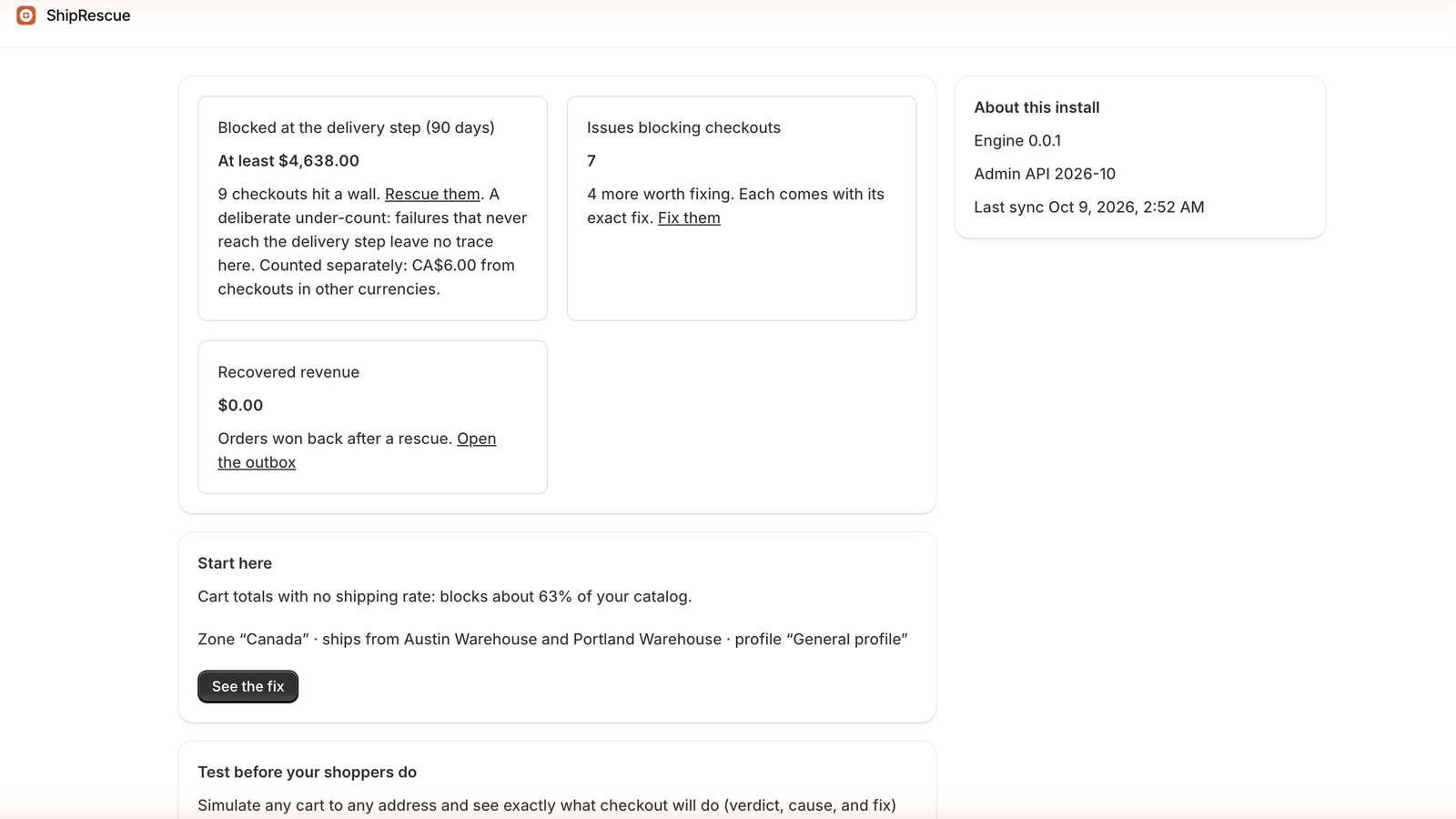
Blocked at the delivery step. The cart value of checkouts that hit a delivery failure inside the window your plan covers. It is phrased “at least $X” on purpose: it counts only the checkouts ShipRescue can prove were blocked, so the true figure is higher, never lower. If you sell in more than one currency, each checkout is counted in the currency the shopper paid in: the headline is your store’s currency, and carts paid in others (CA$6.00, say) are named beside it, never converted or added into it.
That number needs the Growth plan and Shopify’s approval of customer-data access. On Free, this tile invites you to upgrade instead.
Issues blocking checkouts. How many distinct problems the health-check found in your settings right now. Each one carries its own fix.
Recovered revenue. Orders that came back after you sent a rescue. Zero until you send one.
Underneath, Start here names the worst finding with a See the fix button. When that finding is a cart-total gap, it also states the amount, for example “Cart totals under €10.00 get no option in the Germany market”, in the currency of the rate. Test before your shoppers do takes you to Try a cart. The About this install panel shows the engine version, the Shopify Admin API version in use, and when your settings were last read. If that last-check time is old, run a resync from Sync state.
4. Issues: the settings health-check
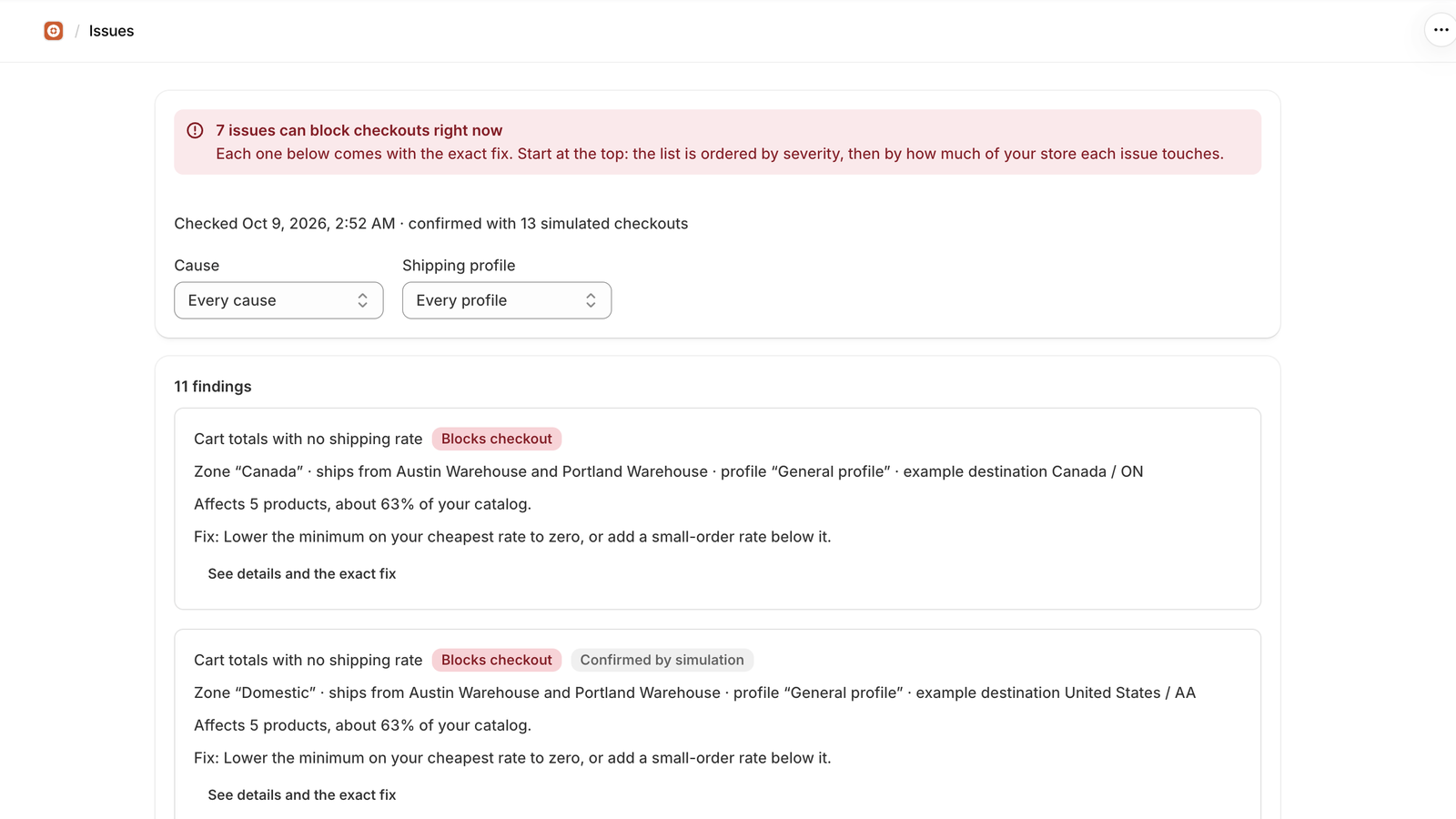
The line under the heading tells you when the check ran and how many simulated checkouts confirmed it. Every row carries a severity badge.
| Badge | Meaning |
|---|---|
| Blocks checkout | A shopper in this situation gets no shipping option at all |
| Silent overcharge | A rate is offered, but the wrong one, and nobody is told |
| Recoverable | The shopper can still get through, with friction |
| Worth fixing | Not blocking anyone today, but it will bite you later |
| Verify at checkout | Shopify’s behaviour here has two possible outcomes, and we will not pretend to know which you get |
When there is more than one cause or more than one shipping profile in the list, you can filter by Cause or by Shipping profile to narrow it.
The banner at the top says one of three things.
- N issues can block checkouts right now. At least one finding is a certain dead end. The list is ordered by severity, then by how much of your store each issue touches, so start at the top.
- Nothing is definitely blocking checkouts. No finding is a certain dead end, but some need a quick check at your own checkout. Each comes with its fix.
- Your shipping settings passed every check. Nothing dead-ends today. It does not mean no shopper will ever fail, because some Shopify behaviour cannot be determined from configuration alone. Try a cart is how you test a specific case.
Two more banners can appear under it. Shipping is set per market means your shipping options live inside each market (Markets, then the market, then Shipping) rather than in shipping profiles. ShipRescue reads each market’s options and checks carts against them the way checkout does, so a finding names the market and the option rather than a profile. The banner keeps a provisional note only where one still applies: a market whose options the last sync could not read (check its carts at checkout, or resync), options read only in part, and behaviour Shopify has not documented, where a finding is marked Verify at checkout and gives both possible outcomes. The same banner shows on Home, and the Sync screen names the shipping model. Only part of your catalog was read means a permission or an API limit stopped a full read, so the percentages are a floor rather than a total.
5. Fixing one issue
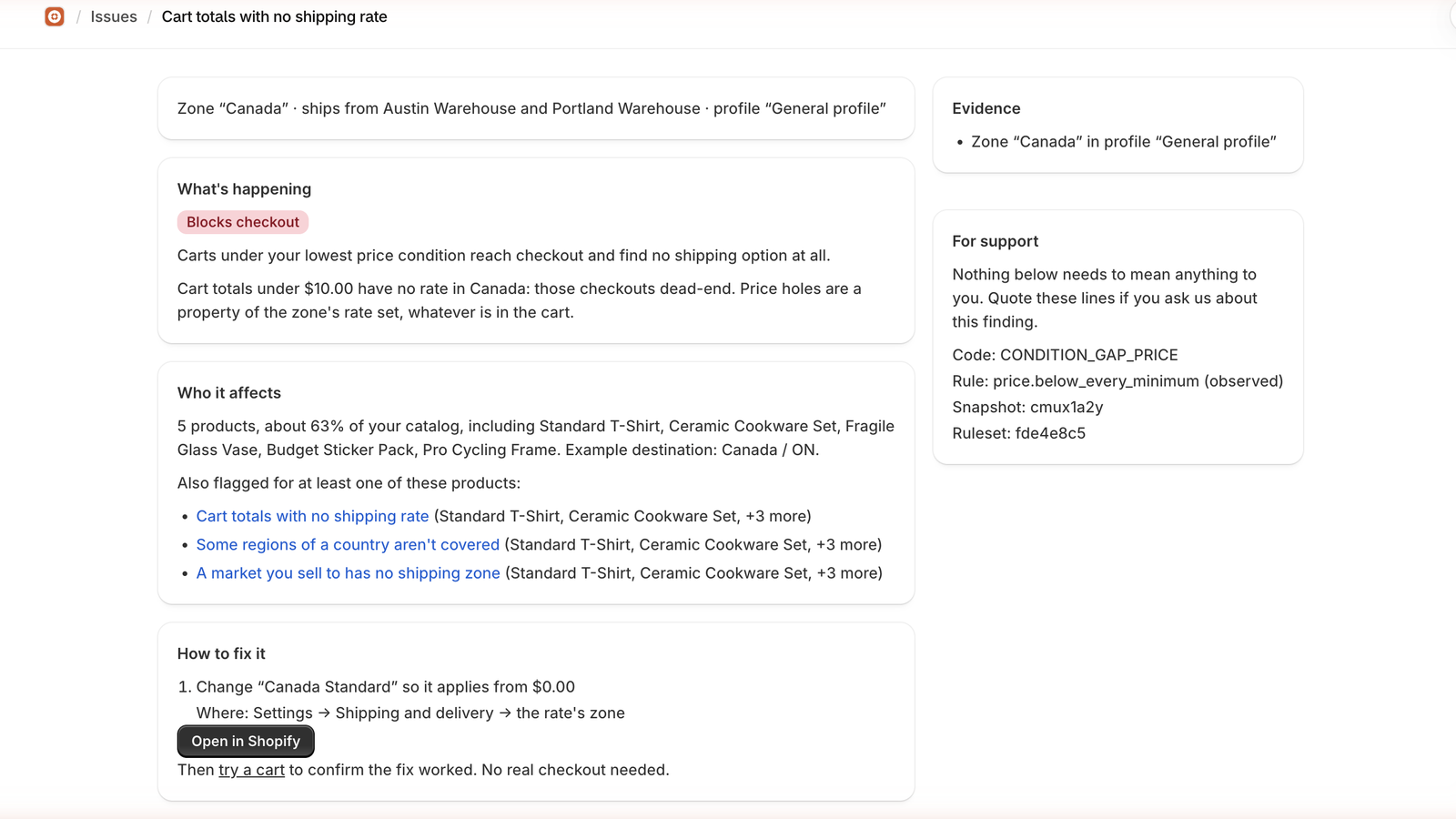
- What’s happening. The problem in a sentence or two of plain English.
- Who it affects. Which products, which destinations, which profile and zone. This is what tells one finding apart from another.
- How to fix it. The change to make, and the exact path in your Shopify admin to make it. You apply it; ShipRescue never does.
- Evidence, in the side panel, with a For support block you can copy.
If the finding is two-valued you also get a Two possible outcomes: verify at checkout panel naming both, so you can test the one that matters to you.
On a store that sets shipping per market, Open in Shopify opens the market’s page, because a market’s shipping options have no page of their own. Open Shipping on that page to make the change. The fix names the option to edit, and any amount is in that option’s currency, with the currency code spelled out when it is not your store’s.
After you make the change in your admin, come back and re-run the check from Sync state. Edits to your shipping profiles, locations, markets and products also trigger a re-read on their own, about 30 seconds after the first change in a burst. Stock levels are the exception: ShipRescue is not told when they move, so a stock change waits for the full read that runs every night at 08:30 UTC, or for Resync now.
6. What each diagnosis means
| What you see | What it means | The usual fix |
|---|---|---|
| A gap between your weight-based rates | Carts whose weight falls between two bands are silently charged the next band up (Shopify uses the next highest weight-based rate when no other rate applies, so the shopper sees a price and no error). Where another rate in the same option serves the cart, only that rate applies and nothing is flagged. Where the same rates also have price conditions, only the carts those conditions do not cover are reported, and the finding names their totals (for example, cart totals under $15.00) | Make the bands touch: the top of one is the bottom of the next |
| Cart totals with no shipping rate | Carts under your lowest price condition find no shipping option. Where weight bands sit beside the price rates, the gap is reported in the weight-gap finding above instead, so the same carts are not listed twice | Lower your cheapest rate’s minimum to zero, or add a small-order rate |
| Stock in a location that can’t ship it | The location holding the stock does not ship to the destination, and no stocked location does | Stock the product somewhere whose zones reach the destination, or turn on continue selling when out of stock |
| These products can’t ship together | Items in one cart belong to profiles with no common way to reach the shopper, though checkout may still offer pickup for them | Give both profiles a zone covering the destination, or offer pickup for one |
| Destination not covered by your shipping zones | Shoppers there see “Shipping not available”, or the item is quietly dropped as sold out | Add the missing country or regions to a zone |
| A country isn’t covered by your shipping zones / Some regions of a country aren’t covered / A postcode area isn’t covered | Shoppers at that destination see “Shipping not available”, or have the item quietly dropped as sold out. If the same profile also has a rest-of-world zone, a missing province or state is marked check at checkout, because whether rest-of-world covers it is not confirmed | Add the missing country or regions to a zone in the profile named in the finding |
| Products with no shipping zones at all | The profile has no shipping zone anywhere, so nothing in it can be shipped. Shopify does not let apps read local delivery settings, so where a location that stocks the products could deliver them locally, ShipRescue marks the finding check at checkout instead of blocked | Add a shipping zone to the profile, or confirm they’re meant for local delivery or pickup only, then put a cart through checkout to an address in your delivery area |
| A market you sell to has no shipping zone | The market is on but no zone covers it, so the country cannot even be chosen at checkout | Add a zone for the market’s countries, or turn the market off |
| A market with no shipping | On a store that sets shipping per market, shipping is off for the market, or it has no options at all, so its countries cannot be chosen at checkout and its products show as sold out | Turn shipping on for the market, or add a shipping option to it (Markets, the market, then Shipping) |
| Products no shipping option covers | On a store that sets shipping per market, every option in the market is limited to collections and these products are in none of them, so shoppers there see them as sold out or not available for delivery | Add a collection that holds the products to one of the market’s options, or add the products to a collection an option already uses |
| Cart under your local-delivery minimum | Shipping is unavailable and local delivery is blocked by your minimum. Pickup is still offered | Fix the shipping gap, and lower the minimum or nudge the cart over it |
| Address outside your local-delivery area | The shopper is just outside the area you drew, with no shipping rate behind it | Widen the area, or add a shipping rate as a fallback |
| Product not available in the shopper’s market | One unpublished item blocks the whole order at the delivery step | Publish the product to that market |
| This rate depends on a carrier at checkout | We can’t tell from settings whether the carrier or app returns a price for this cart | Confirm the carrier account is connected, add a backup rate, then check the cart at checkout |
| A shipping rate in the wrong currency | The rate was created in a different currency than your store now uses | Delete and recreate the rate in your store currency. On a store that sets shipping per market, edit the rate instead (Markets, the market, Shipping, then Edit) and set its price in your store currency |
| A discount can push carts below your rate floor | A large enough discount drops the total under your cheapest rate’s minimum | Lower that minimum to zero so discounted carts always have an option |
| A product with no weight set | Weight-based rates will misprice or reject it, often silently. A bundle is never flagged for this: checkout ships its components, which carry their own weights | Set the real weight on the product |
| A digital product in a weight-rated profile | It never enters rate calculation; worth confirming that is intended | Confirm the product really needs no shipping |
| Your settings changed after this checkout | The failure this shopper hit may already be fixed | Re-diagnose against today’s settings |
| Another app can change your rates at checkout | Your settings give this cart a rate, but an app on your store adds a delivery customization that can hide, rename or reorder delivery options at checkout. ShipRescue can see that it is on, not what it does | Put the cart through your storefront checkout, and check what the app’s customization is set to do |
| ShipRescue couldn’t check for apps that change rates | ShipRescue could not read your store’s list of delivery customizations, usually because you have not yet approved the permission to read it, so it cannot tell whether another app changes delivery options at checkout | Open ShipRescue from your Shopify admin and approve the updated app permissions when Shopify asks, then sync again. Until then, put the cart through your storefront checkout |
| We couldn’t pin the cause | Something blocked the checkout that the analysis could not attribute | Note what your storefront checkout says; only the real checkout can answer this one |
| Shipping was available, but the shopper left anyway | Delivery options existed; the abandonment had another reason | Ordinary cart-recovery tactics apply |
On a store that sets shipping per market, the weight and price gap findings are about a market’s shipping options rather than a profile’s zones: the finding names the market and the option, and a stocked location that an option does not ship from is fixed by adding it to that option’s locations. A cart lighter than every band is fixed by starting the lowest band at zero, and a heavier one by raising or removing the top band’s maximum. Findings name a collection by its title and give weights in your store’s unit (kg or lb), or in the unit the shipping option itself uses.
Weight bands and price conditions are judged together. A weight gap in a market or profile that also has price-based rates is reported only for the cart totals those rates leave uncovered. Where a price-based option serves the cart, a market-driven store gets no weight finding, because that option wins. A weight above your heaviest band, with no other rate that serves the cart, is a certain dead end on both kinds of store: with no higher rate, Shopify returns no shipping method. On a profile store a weight gap between two bands is a Silent overcharge, not a question: Shopify documents that the next highest weight-based rate is used when no other rate applies, so the shopper is charged the next band up. A cart lighter than your lightest band is different: Shopify does not say what checkout does for it, so that finding stays Verify at checkout. A cart in a gap that a price-based rate in the same option serves gets only that rate and is not flagged. The finding turns into Verify at checkout only when something ShipRescue cannot see may serve the cart: a carrier or app rate in the same option, a rate still priced in a currency the store no longer uses, a profile that covers all items, a price condition the cart sits right at the edge of (for a shopper paying in another currency), another location that ships from a different set of rates, or a rate it could not read.
On a store that sets shipping per market, two findings only ask you to check at checkout, on a cart that still gets a rate: A cart right at the bottom of your weight bands (it weighs exactly the lowest band’s minimum, and checkout is only known to include a band’s maximum), and ShipRescue couldn’t read where this option ships from (the sync could not read the option’s origin locations, so it assumed any location can ship).
7. Try a cart
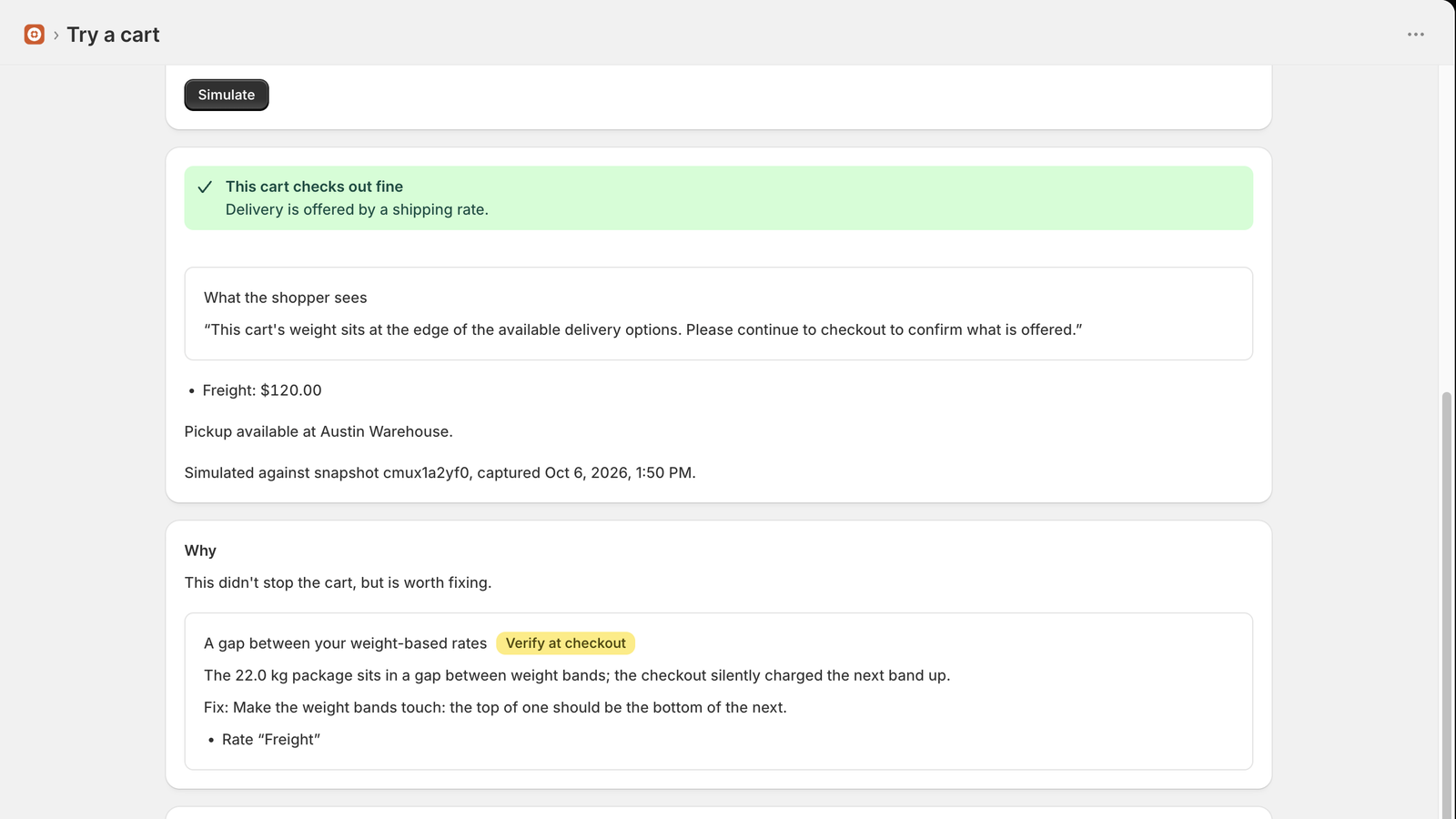
Build a cart, send it to an address, and see exactly what checkout would do. Search for products and set a quantity, pick a Country (or “Somewhere else” and a two-letter code), and add a Region and Postal code when the problem you are chasing depends on them, because many do. An optional Discount percentage tests the discount-induced gap. Country the shopper was browsing from is optional and only matters if you use Shopify Markets; leave it empty to match the destination. Only products that require shipping are listed; gift cards, downloads and services never get a shipping rate, so they are left out.
You get one of six verdicts.
- This cart checks out fine.
- This cart gets a rate, and checkout has the final say. A rate is offered, but another app’s delivery customization can change it at checkout (below).
- Part of this cart can’t be delivered. One or more items have no delivery option to this address. Checkout drops them and completes with the rest of the cart.
- This cart may not get a shipping rate. Your settings alone cannot settle it, so the findings say what checkout decides. Put the cart through your own storefront checkout to see.
- This cart fails, but a way out exists, with Ways the shopper could still get through listing them.
- This cart hits “Shipping not available”.
Why explains the verdict, and a grey line under the verdict names the snapshot of your settings the answer came from and when it was captured, so you always know whether you are testing today’s configuration or a stale read. The same capture time sits under the form before you simulate.
On a store that sets shipping per market, the country list comes from your markets rather than your zones, and the answer comes from the destination market’s own shipping options, priced in their currency. The exception is a market whose options the last sync could not read: its answer asks you to check that cart at checkout, and a resync usually clears it.
Three things your settings do not decide on their own, so the answer says so rather than guess:
- Another app’s delivery customization. Apps can add delivery customizations that hide, rename or reorder delivery options at checkout. When one is on, a cart that gets a rate reads This cart gets a rate, and checkout has the final say, and the Why panel names the customizations. They can only take options away, so a cart that fails still fails. If ShipRescue could not read the list, for example because you have not yet approved its updated app permissions, the banner says it couldn’t check rather than claiming an app is there, and tells you how to grant it.
- Bundles. Checkout ships a bundle’s components, with their own weights, shipping profiles and stock, not the bundle product itself. ShipRescue does not read the components yet, so a failure involving a bundle is never shown as certain: the finding asks you to check that cart at checkout. The one exception is a bundle your market does not publish, which is still a certain failure. A bundle is never reported as a product with no weight.
- A rate charged once or per location. When a rate with a weight or price condition ships from a location group with several locations, checkout may charge it once or add it up per location, and Shopify does not say which. The rate then shows both prices, an amount your settings don’t fix in words rather than as $0, and is marked Verify at checkout.
Try a cart is on every plan, including Free.
8. Checkouts: what failures actually cost
Growth plan
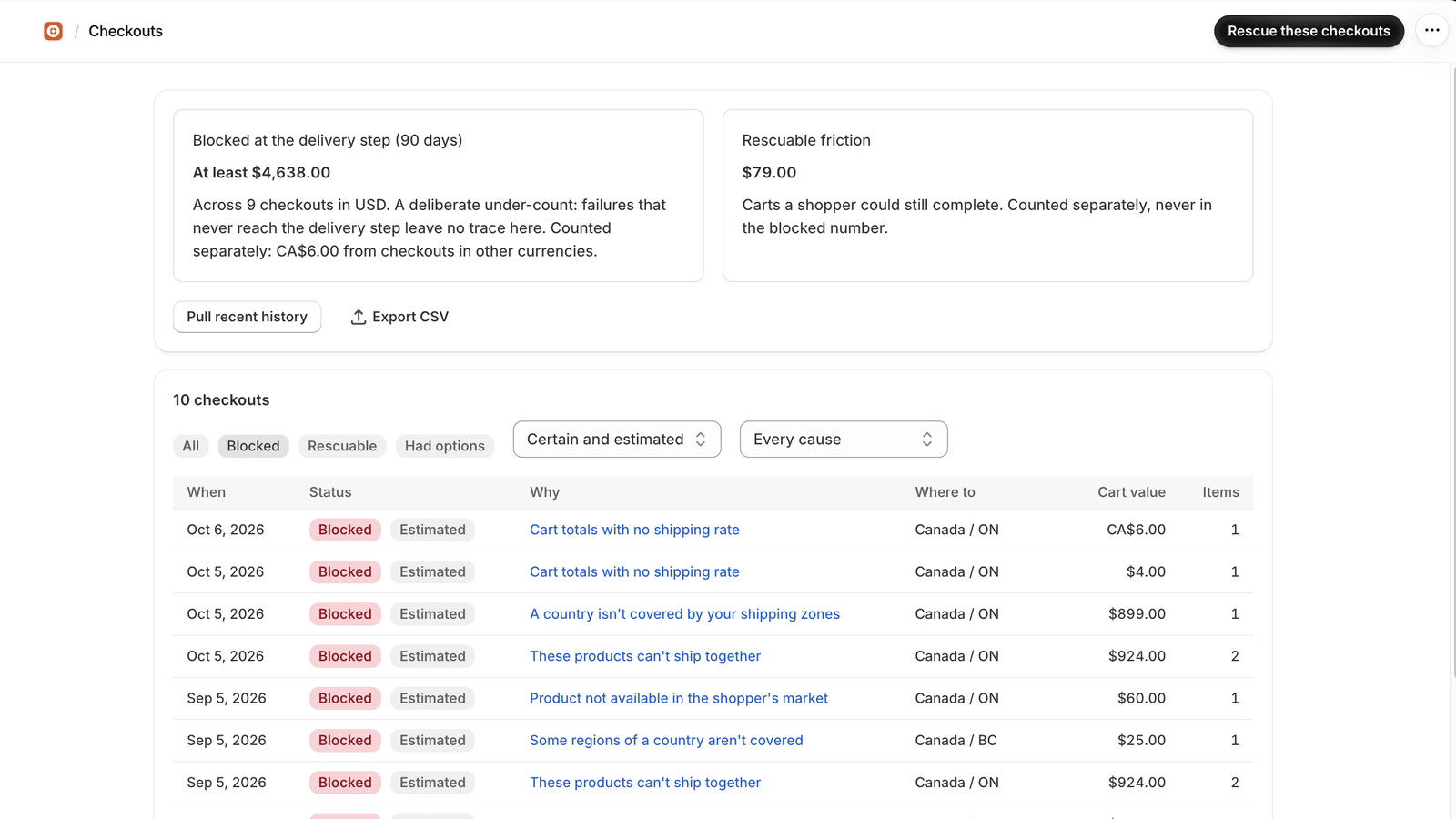
Each row carries a verdict chip, and these are a different set from the Issues badges because they describe one shopper’s checkout rather than a setting: Blocked, Rescuable, Had options (delivery was fine, so it is never counted as blocked; usually they left for another reason, but a row can name Charged the next weight band up when the cart fell in a gap between your weight bands and the shopper was quoted the next band, with the repair listed on the checkout page), Check at checkout (ShipRescue suspects a dead end but cannot confirm it from your settings, so check this cart at checkout), Diagnosing, Not diagnosed (no shipping or billing address, which Shopify never stored, and a cart that does not fail the same way for every address a shopper could have entered, so it cannot be analysed), and Recovered once they come back after a rescue. Beside a chip you may also see Verify at checkout (the finding has two possible outcomes), Estimated (the checkout was judged against settings captured more than a day from when it was abandoned, or it was pulled in from history, so the diagnosis is a best reconstruction) and Cart changed since diagnosis, which means the shopper changed the cart after it was judged, so the chip describes the earlier cart until you re-diagnose.
Press Pull recent history to backfill. Shopify shares up to 60 days of abandoned checkouts with an app, so a new install starts with up to 60 days; ShipRescue keeps every checkout after that for 90 days, so the full window fills in over the first month. A new abandoned checkout is diagnosed about 30 minutes after it last changed; Re-diagnose now on its page skips the wait. The two tiles count separately on purpose: Blocked at the delivery step (N days) is where delivery genuinely failed, over the days your plan covers, and Rescuable friction is where a way through existed but was awkward. Filter by verdict, by Certainty (certain, or estimated) or by cause, and Export CSV for anything you want to analyse elsewhere. The list holds up to 500 of the most recent checkouts in your plan’s window; on a very busy store it says so, and both tiles above it still cover every checkout in the window.
Open one for What happened, The diagnosis and What you can do.
A checkout with no address at all is diagnosed only when every address a shopper could have entered would have given the same answer, for example a product in a shipping profile that has no zones and that no location could deliver locally, or a cart under the minimum of every shipping rate. Its row reads No address recorded under Where to, and its page says that the diagnosis is what was true for every address. A billing address, where Shopify stored one, is already used as the address. Where the address would change the answer, the row stays Not diagnosed and is never counted in your blocked total. If an update to ShipRescue later finds the answer no longer holds for every address, the earlier verdict is withdrawn and the row goes back to Not diagnosed.
This screen needs the Growth plan and Shopify’s approval of ShipRescue’s access to customer data. Until that approval lands it works on development stores only. The health-check and Try a cart work everywhere from day one.
9. The rescue outbox
Growth plan; invoices on Scale
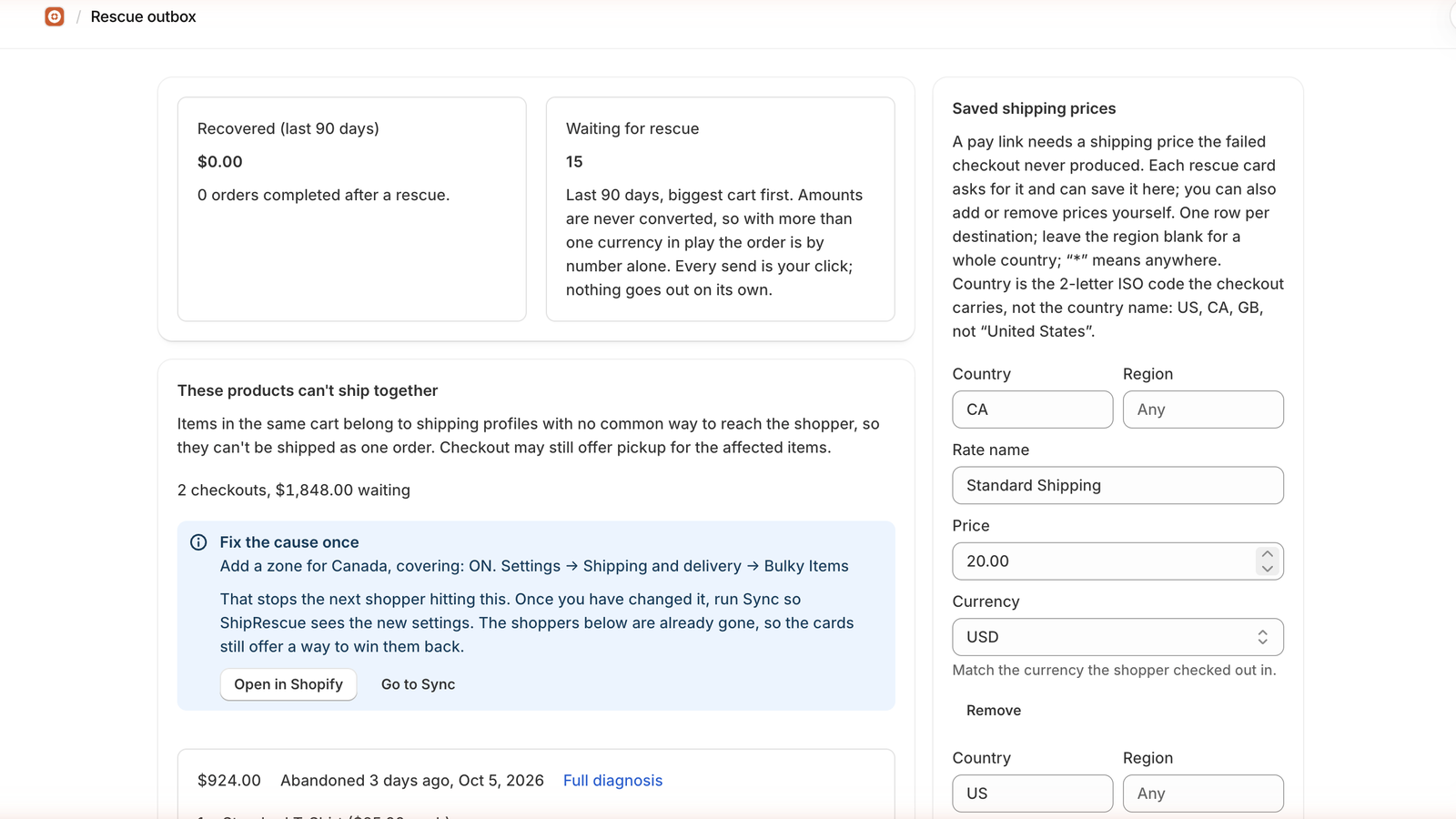
| Kind | What the shopper gets |
|---|---|
| Repair link | Their cart, minus the items that could not ship, ready to check out |
| Split into N orders | The cart divided so each part has a way to ship |
| Threshold nudge | The cart plus the amount needed to clear your rate’s minimum |
| Pickup nudge | The cart set to collect from a named location |
Open a prefilled email puts the message in your own mail client, written and ready for you to address, edit and send. The shopper’s email address is in Shopify, under Orders, then Abandoned checkouts; ShipRescue does not keep it. Mark as sent keeps the list honest. It asks before it marks, because it cannot be undone and because a cart recovered later is credited to whatever you have marked as sent.
Each checkout is a card that names what the shopper was buying (each product, quantity and price), what it was worth, when it was abandoned and where it was going. A cart whose value Shopify never recorded says Value not recorded rather than $0.00. Checkouts that failed for the same reason share one section, and when the cause is a setting in your store that section opens with Fix the cause once: what to change, where in Shopify, and an Open in Shopify button. Fixing it stops the next shopper hitting the same wall; the shoppers already gone still need a link, which the cards below provide. After you change the setting, run Sync so ShipRescue sees it.
On Scale every card can also send a pay link. Press Create the pay link and ShipRescue creates a draft order in Shopify for that cart, then shows you the link to copy. The shipping name and price sit in the same box, filled in from what you saved for that destination, or empty for you to fill in when nothing fits (the failed checkout never had a shipping price, so the invoice needs one). Save this price keeps it for next time. If Shopify has an email address for the shopper you can also press Email it through Shopify; if it does not, or ShipRescue cannot read it, you copy the link and send it yourself. Nothing is sent until you do it. The Saved shipping prices panel lists the prices you have kept. If a shopper changed their cart after the diagnosis, the row pauses itself with a Re-diagnose now button rather than sending something stale. Press it and the card re-checks itself against your current settings. A pay link charges for the cart as it was when you made it, with the shipping price for its address, so once the items or the address change the card offers a new one instead. If Shopify sent ShipRescue only part of a cart, the card says so and offers no pay link or repair link, since either would charge for part of the cart. Run Sync to read it again; if that does not clear it, an item in the cart was deleted from your store, and the shopper needs to start a new checkout. When a rescued order comes back, the row gets a Recovered badge and its value joins Recovered revenue on Home.
Once in a while a send goes out and never reports back, usually because the connection dropped part-way. ShipRescue will not quietly send again, since that could put a second invoice in your shopper’s inbox, so the row waits. Give it a few minutes; if it is still waiting, open the draft order in Shopify, look at its timeline for a sent invoice, and tell ShipRescue what you found. No invoice was sent puts the Send button back. The invoice went out records it without sending anything.
A pay link that is slow to create works the same way. While it is still being made, the card says so instead of showing the button. If Shopify never answered, the button comes back after about ten minutes, and pressing it makes ShipRescue look for the draft order it may have made before it makes another. Each shopper gets at most two invoices for one checkout, however many times the cart changes, and none once the checkout has become an order. Past that, copy the pay link and send it yourself if you still want to.
10. The storefront delivery checker
Growth plan
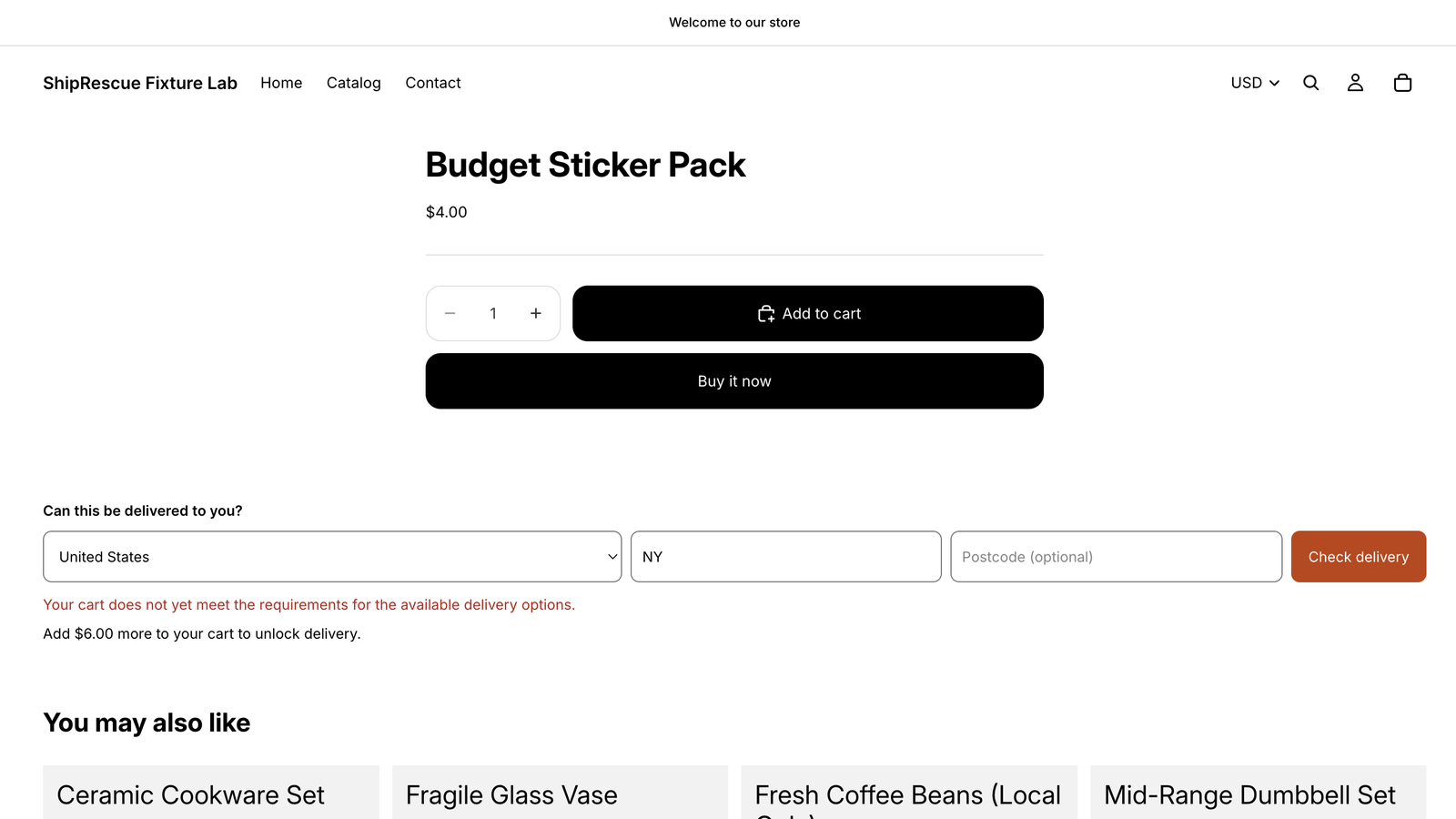
A block your shoppers can use on the product page and the cart page to ask “can this be delivered to me?” before they ever reach checkout, so a failure becomes a question answered early instead of a dead end at the last step.
What your theme needs. The checker is a theme app block, so it needs an Online Store 2.0 theme: one whose sections can take app blocks (Dawn and the themes built since 2021 do). Vintage themes, the older kind that cannot take app blocks through the theme editor, are not supported. If ShipRescue is not listed under Apps when you press Add block, your theme is most likely a vintage one.
Where it can go. On the product page template and the cart page template, and nowhere else; the theme editor does not offer it on other pages. On a product page it checks the variant and quantity the shopper has chosen, on its own: whatever is already in their cart is not counted there. On the cart page it checks everything in the cart.
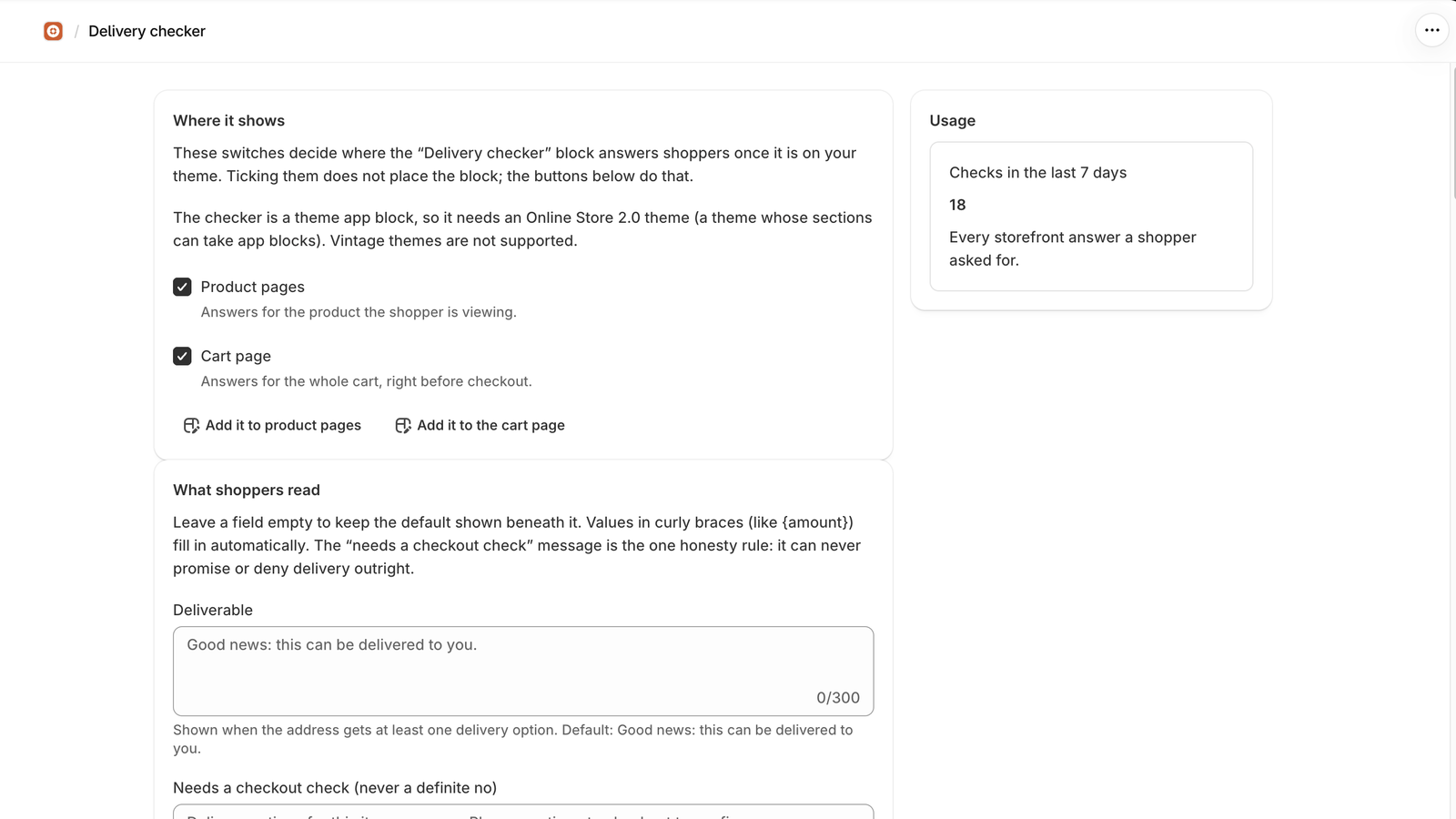
Setting it up takes two steps, and the first is the one people miss. Where it shows says where the block is allowed to appear; ticking a switch does not place it. Add it to product pages (or Add it to the cart page) opens your theme editor with the block ready to place, and placing it there is what makes it appear.
Adding, moving and removing the block in the theme editor.
- Add it with the buttons above, or yourself: in the theme editor open the product or cart template, choose Add block in a section, pick Delivery checker under Apps, then Save.
- Move it by dragging the block up or down in the left-hand list, or into another section that accepts app blocks, then Save.
- Remove it by selecting the block in the list and choosing Remove block, then Save. Shoppers stop seeing it at once; your wording and style in ShipRescue are kept for when you add it again.
The block’s two settings are in the theme editor, with the block selected.
- Heading is the line above the form. It starts as “Can this be delivered to you?”. Clear it to show the form with no heading.
- App proxy path is where the block reaches ShipRescue on your storefront. It starts as
/apps/shiprescue, which is right for almost every store. Change it only if the App Proxy URL was customised under Settings, Apps. A wrong path leaves the block hidden, and in the theme editor the block says it could not reach the app.
The labels and buttons on the form follow your storefront’s language. The answers use the wording you set under What shoppers read.
What shoppers read is your copy, with {amount} placeholders that fill in real numbers. The wording is yours, but the answer is always honest: the block never claims a delivery that your settings cannot produce. {amount} is in your store’s currency, because your shipping conditions are; a shopper paying in another currency sees it named (“US$5.00”, not “$5.00”) so it is never mistaken for their own. Where a percentage discount applies, {amount} is the value of goods to add, not the gap after the discount: at 30% off, a cart EUR 1.60 short needs EUR 2.28 more of goods. Close to a price condition, a shopper paying in another currency is told to confirm at checkout, because Shopify converts and rounds their cart before the condition sees it. On a store where another app adds a delivery customization, the block never promises delivery outright: it shows the rates your settings give and asks the shopper to confirm the final options at checkout, because that app can change them there. A product page checks one item and no cart, so its answers say “this item” where the cart page says “your cart”, and its add-value hint says the item on its own is short by the amount and that anything else in the order counts towards it. The defaults for those messages are shown under each field. Wording you type for a message is used on both pages, so write it to read on either: leave “your cart” out of it if you want it to be true on a product page. Style sets the accent color and corner radius so it matches your theme. The Usage panel shows Checks in the last 7 days, how often shoppers asked; a zero means either nobody asked or the block is not placed, so check the theme editor before reading anything into it.
11. Sync state
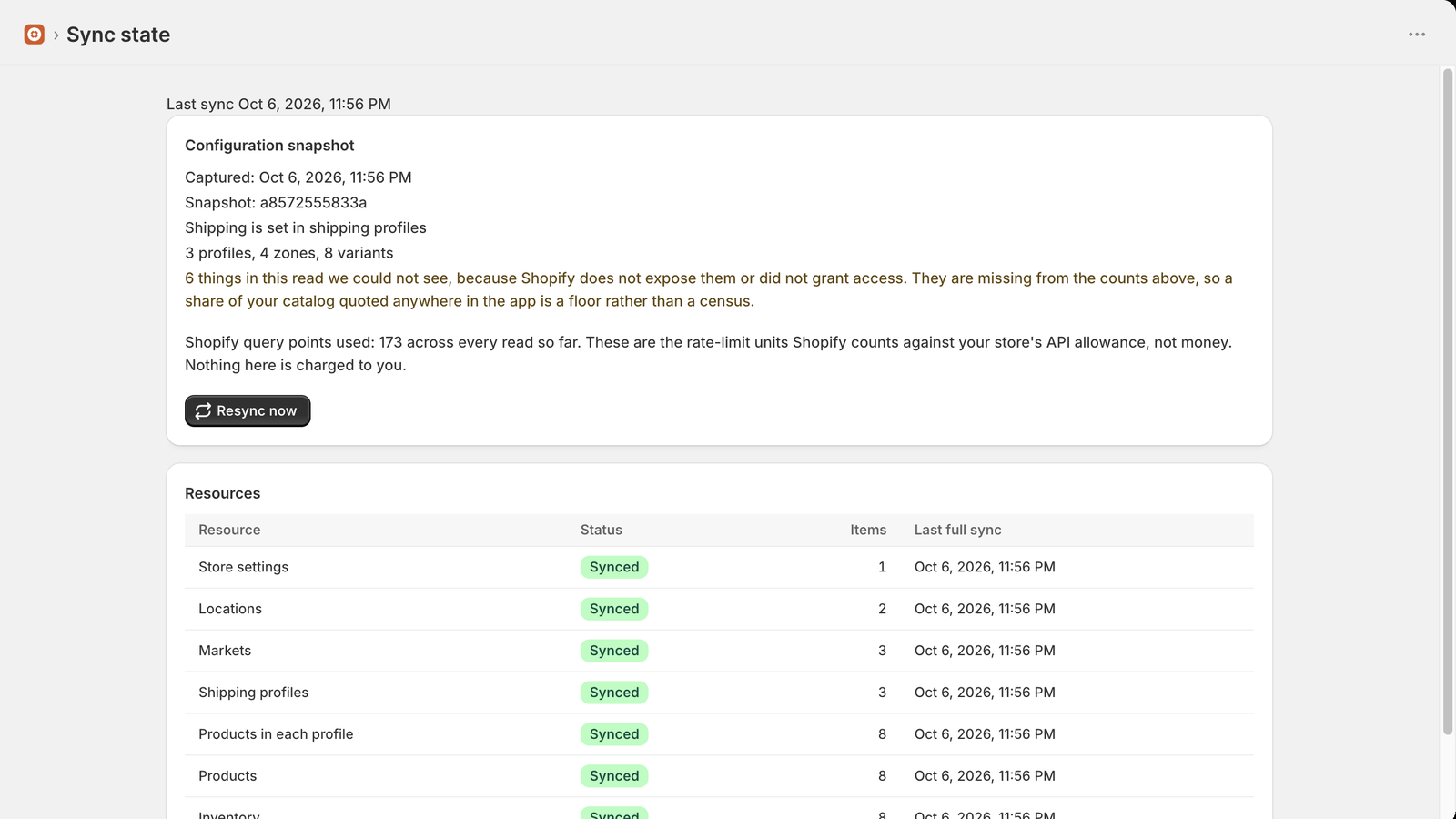
What ShipRescue has read from your store, and when. Each resource (store settings, shipping profiles, the products in each profile, locations, markets, products, inventory, abandoned checkouts and orders) has its own status. Resync now re-reads everything; use it after making a settings change you want checked immediately. A full read also runs by itself every night at 08:30 UTC, which is when stock changes are picked up. Configuration snapshot shows when the settings your current findings were computed against were captured, and the first 12 characters of their fingerprint (Snapshot:); findings are pinned to their snapshot, which is why an old diagnosis never silently re-interprets itself. Shipping is set in shipping profiles or Shipping is set per market names the shipping model your store uses; on a store that sets shipping per market, the counts are the markets read and their shipping options instead of profiles and zones, and any market whose options could not be read is named, so you know which results are provisional. “We found no way to read this on your store” means a permission or a store feature is missing, and anything downstream is reported as a floor rather than a total. Query points is Shopify’s API budget, not money.
12. Settings, plans and billing
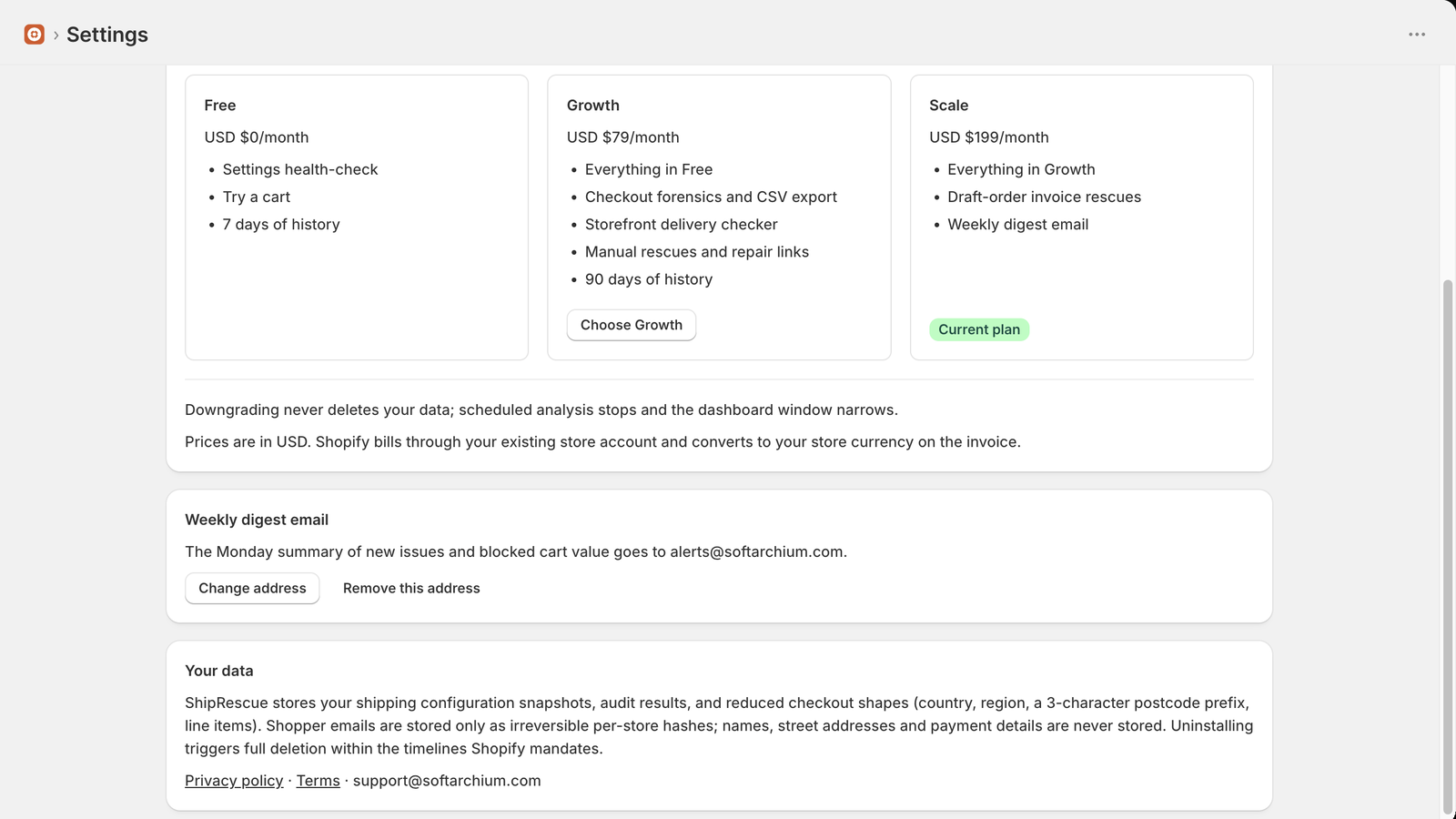
| Plan | Price | What it adds |
|---|---|---|
| Free | $0 | The settings health-check and Try a cart, with a 7-day history |
| Growth | $79/month | Checkout forensics, the rescue outbox, the storefront delivery checker, CSV export, 90-day history |
| Scale | $199/month | Everything in Growth, plus payable draft-order invoices and the weekly digest email |
Both paid plans come with a free trial of up to 14 days, once per store. It is once per store rather than once per subscription, so cancelling and resubscribing offers whatever is left of the original 14 days, not a fresh one. Uninstalling does not reset it either. Reinstall within about 48 hours and you are offered whatever is left; after that, ShipRescue has deleted what it held for your store at Shopify’s request (see Privacy), and a reinstalled store counts the trial as used. Billing runs through Shopify, so it appears on your Shopify invoice and you cancel from the same screen. Upgrading takes one extra step: press Choose Growth or Choose Scale on that plan’s card, then Continue to Shopify to approve the charge on Shopify’s own page. Nothing is charged until you approve.
If you press Cancel on that page instead, Shopify returns you to your Apps list rather than to ShipRescue. That is Shopify’s own behaviour and not a fault: nothing is charged and your plan is unchanged. Open ShipRescue again and Home will say what happened, with See plans to pick up where you left off. The same note appears if you simply close the approval page without answering; Shopify lets an unapproved charge lapse after two days. Not now on Settings hides it until the next time you start an upgrade.
Cancelling, uninstalling and coming back. Cancelling stops future charges, not time you have already paid for. Once your free trial is over, Cancel subscription on Settings, uninstalling the app, and a cancellation made on Shopify’s side all work the same way: your plan stays on until the date you paid through, and Home and Settings say You’re on Growth until that date (or Scale). After that date you are on Free. If you reinstall later in that paid stretch, the plan comes back with it.
To keep the plan past that date, press Keep Growth (or Keep Scale) and approve on Shopify’s page. Shopify’s page will call the days you have already paid for a “free trial”. They are not a trial and do not use up yours, and you are not charged again until the date shown.
If you cancel while still in the free trial, nothing was charged, so you move to Free straight away. Home and Settings note that your trial ended early and that the charge in Shopify’s approval email will not apply, unless an upgrade you started earlier and never finished is shown there instead. Choosing the plan again uses whatever is left of your trial.
One thing worth knowing before you start: the free trial is counted from the moment a plan is offered, not from the moment you approve it. Starting an upgrade, walking away, and coming back a week later leaves you seven days of trial, not fourteen.
Weekly digest email (Scale) is the address that gets the Monday summary of new issues and blocked cart value. It goes out on Mondays at 14:00 UTC, and it is not sent in a week when you have no open issues and nothing was blocked. Choosing Scale asks for that address before it takes you to Shopify, because the digest is most of what the plan adds and it has nowhere to go without one. On Scale the saved address is shown as text with Change address, which edits it in place, and Remove this address, which stops the email. Removal is a deliberate act: saving the field empty is refused rather than treated as a removal, and after a removal Home and Settings both warn that the updates are being missed until an address is back. On Free and Growth the field is replaced by a note saying which plan the digest is on, and an address you saved before is kept and shown there, ready for the day you move up, with Remove this address if you would rather it were not. That button matters if you started a Scale upgrade, gave an address and then cancelled on Shopify’s page: the address is saved at the moment Shopify accepts the subscription, which is before you approve the charge, so it can outlive an upgrade you decided against.
Remove this address always removes it, on every plan and whatever is happening with your billing. If a Scale upgrade is still sitting unanswered on Shopify when you remove it, a note appears saying so, because approving that upgrade afterwards leaves the digest with nowhere to go until you add an address back. It removes it all the same. Nothing you can reach in ShipRescue answers or cancels a charge you have walked away from, and Shopify leaves an unanswered one alone for two days, so holding your address until then would have meant holding it with nothing you could do about it.
Customer data requests is where a shopper’s request for what you hold about them arrives, answered and ready to pass on. Your data summarises what is stored, which is section 14.
13. What the install screen asks for, and why
Shopify groups permissions its own way, and some of the labels read more alarmingly than what is behind them. Here is every line of that screen.
| What the screen says | What ShipRescue does with it |
|---|---|
| View products: inventory, products, collections | Weights and prices decide which shipping rate a cart qualifies for; which location holds the stock decides whether anywhere can ship it. This is the raw material of every finding |
| View other data: locations, Markets settings, publications | Your zones and location groups, your markets, and whether a product is published to a market. A product missing from a market’s catalog is itself a reason checkout fails |
| Edit orders: order history for the last 60 days, shipping information, draft orders | Reading abandoned checkouts, so a failure can be diagnosed and priced, and matching a later order back to the rescue that recovered it. “Edit orders” is Shopify’s name for the group: ShipRescue never edits an order. The draft order is the invoice rescue in section 9, created only when you press the button. Your full order history is not requested, which is why the screen says 60 days |
| View customers, and the email address under sensitive data | The shopper’s email is who a rescue goes to. Shopify will not release it on an abandoned checkout without this permission. It is stored only as an irreversible hash, and the address itself is fetched at the moment you click send |
| View delivery customizations | Whether another app has added a delivery customization that can hide, rename or reorder delivery options at checkout. ShipRescue reads only which ones are on and their names, never changes them, and uses this to avoid telling you or a shopper that a rate will appear when an app might hide it |
| Physical address under sensitive data | Only the country, the region and the first three characters of the postcode are kept. The street never reaches storage, because no diagnosis needs it |
| Device and activity data | Nothing. ShipRescue reads none of it and stores none of it. Shopify lists it because it comes with reading orders and checkouts at all, not because an app asked for it |
| View staff and contributor data: store owner | Nothing. This is the contact information Shopify shares with an app’s developer when you install. ShipRescue requests no staff permission and reads no staff data |
What ShipRescue deliberately does not ask for: your shoppers’ names, their phone numbers, and any order history older than 60 days. Not requested, not received, not stored. Section 14 covers what does get stored, and for how long.
14. Privacy, in plain words
- Email addresses are never stored. What is stored is an irreversible hash, unique to your store, which lets ShipRescue recognise the same shopper twice without ever being able to read the address back. When a rescue needs the real address it is fetched from Shopify at the moment you click send, handed straight to Shopify for the invoice, and not kept.
- Addresses are reduced to country, region and the first three characters of the postcode. The street never reaches storage.
- No name, no phone number and no payment detail is stored at all.
- Shopify sends ShipRescue your abandoned checkouts and orders on every plan, Free included, and each is reduced to the fields above before it is stored. On Free they are stored but not diagnosed.
- Records expire by themselves: diagnosed checkouts within 90 days, order records within 14, whether or not you ever uninstall. Older settings snapshots are pruned too: the newest 30 are kept, plus the current one, the newest one from at least 90 days ago, and any that a kept diagnosis or health-check still refers to. The privacy policy has the exact rule.
- If you set a digest address, it is stored against your store until you remove it or your store’s data is deleted. The weekly digest goes out through a mailbox we run on Hostinger and carries no shopper data.
- Uninstalling destroys your store’s hashing key, which permanently breaks the link between anything left and any real person.
- About 48 hours after you uninstall, Shopify asks ShipRescue to delete what it holds for your store, and it does: diagnoses, history and settings, including the digest address. Apart from a log of which notices Shopify sent and when, the one thing kept is your store’s domain, plan and paid-through date, if you had a paid plan, so that reinstalling later in a period you paid for still gives you that plan. It is deleted once that date passes.
- Nothing is sold, nothing is shared, and there is no advertising or cross-site tracking of any kind. The two outside services the app reports to are Sentry, which receives error reports (what failed and where in the code), and Better Stack, which keeps the app's operational log lines for a few days. Shopper data is stripped out before either leaves our server; the privacy policy lists exactly what each one holds.
The full policy is in the privacy policy.
15. Troubleshooting
Every number is zero
The first read may still be running, or you are on Free, where the checkout numbers are not included. Check Sync state for the last read time.
The health-check is clean but a real checkout failed
Some Shopify behaviour cannot be determined from settings alone, which is why ShipRescue will not claim a clean bill of health it cannot prove. Reproduce the exact cart and address in Try a cart: it is the tool for a specific case.
The share-of-catalog figure looks low
It is a floor. If Only part of your catalog was read is showing, the real figure is higher.
A finding mentions carrier-calculated rates or market-level shipping
ShipRescue will not assert a dead end from carrier-calculated rates, or from market shipping behaviour Shopify has not documented (a market that inherits its shipping from another, for example), because that is not something it can verify from configuration. It flags them and asks you to confirm at checkout.
A diagnosis looks out of date
It is pinned to the settings snapshot it was computed against, on purpose. Resync, then re-diagnose.
The delivery checker shows nothing on my product page
The switches on the Delivery checker screen only allow it. Placing the block in your theme editor is what makes it appear, and only an Online Store 2.0 theme can take it; if ShipRescue is not listed under Apps when you press Add block, your theme is a vintage one.
My trial did not start
The trial is once per store. If this store has used it before, you get whatever is left of the original 14 days. If a plan was ever offered on this store and it was then uninstalled for more than about 48 hours, the trial counts as used.
Shopify’s page offers a free trial I did not expect
If you pressed Keep Growth or Keep Scale while Home said “You’re on … until” a date, those are days you already paid for. Shopify labels them a trial; you are not charged again until that date.
Something else
Email support@softarchium.com with your store domain and the screen you were on.
Known limits
These are places where Shopify decides something ShipRescue cannot read, so a finding or a price can differ from what a shopper sees at checkout.
- Managed Markets. If you sell through Shopify Managed Markets, Shopify hides some restricted products from shoppers in some countries, and it sets a maximum order value for a few destinations (Argentina, Brazil, China, Indonesia and Mexico). ShipRescue cannot see either, so it can call a cart deliverable that Managed Markets will not sell. Shopify’s own list is on its page about prohibited items and order caps.
- Pickup-point apps. On a development store or a Shopify Plus store, a custom app can add pickup points to checkout that ShipRescue does not read. If you use one, a “no shipping rate” finding may still have a pickup option at checkout, so confirm it there.
- Other shipping apps, and profiles that cover all items. Shopify does not tell apps whether you switched another shipping app’s rates on. On a store that sets shipping per market, ShipRescue reads which delivery profiles belong to apps. Where such a profile has a zone for the destination and covers every product in the cart, a market with no shipping, a product no option covers, or a weight or price dead end in a market is shown as Verify at checkout with both outcomes: the app’s rate is offered if you switched it on, and there is no option if not. On a store that sets shipping in profiles, a profile that covers all items applies to every product in the cart. Shopify does not say whether checkout then still needs a product’s own profile, so where a product’s own profile fails and the all-items profile could serve the cart, the finding is Verify at checkout too.
- B2B and point-of-sale markets. ShipRescue treats every market it reads as a storefront market and does not tell the types apart. If you use B2B or point-of-sale markets, confirm any finding that names one.
- Shipping price on a split order. Shopify combines rates differently for split shipments and for shipping set per market: the highest matching rate inside one shipping option, and the sum across separate options. On a store that sets shipping per market ShipRescue prices a cart that way. On a store that sets shipping in profiles it adds the cheapest rate of each profile group, which is what Shopify documents for combined rates, but Shopify does not say how split shipments combine weight-based rates, so the price it shows for a cart that spans several groups can differ from checkout’s. Whether a rate exists, which is what a dead end depends on, is not affected.
16. Glossary
| Term | What it means |
|---|---|
| Settings health-check | The scan of your shipping configuration that produces the Issues list |
| Delivery step | The point in checkout where a shopper picks a shipping method |
| Blocks checkout | The Issues-screen badge for a setting that leaves some carts with no shipping option at all |
| Blocked | The Checkouts-screen verdict for one shopper whose checkout hit exactly that |
| Silent overcharge | A rate is offered, but the wrong one, and nobody is told |
| Recoverable | A way through exists, with friction |
| Verify at checkout | Shopify’s behaviour here has two possible outcomes, so we show both instead of guessing |
| Shipping profile | A Shopify grouping of products with its own zones and rates |
| Shipping option | On a store that sets shipping per market, one way to ship inside a market (Markets, the market, then Shipping), with its own rates, collections and origin locations |
| Zone | The countries or regions a set of rates applies to |
| Rate condition | The weight or price range that decides whether a rate is offered |
| Snapshot | A frozen copy of your shipping settings, so a diagnosis always says what it was based on |
| Blocked cart value | The value of carts that hit a delivery failure, counted only where it can be proven |
| Repair link | A link that reopens a shopper’s cart with the unshippable part removed |
| Draft order | A Shopify order you create for a shopper, which they can be emailed and pay |